
Why Android Security Settings Matter More Than Ever
Android smartphones have become the center of our digital lives. From online banking and UPI payments to personal photos, emails, passwords, and even government documents — everything now lives inside one small device. However, this convenience has also turned Android phones into a prime target for hackers, cybercriminals, spyware developers, and data thieves. Many users believe that installing an antivirus app is enough, but the harsh reality is that most security breaches happen because critical Android security settings remain disabled by default.
In 2026, cyber threats targeting Android users have evolved rapidly. Fake apps, phishing attacks, malicious Wi-Fi networks, hidden spyware, and permission abuse are now more advanced than ever. Hackers no longer rely only on viruses; instead, they exploit misconfigured security settings, outdated permissions, and user negligence. This is why understanding and enabling the right Android security settings is no longer optional — it is absolutely essential. In this detailed guide, you will learn exactly which Android security settings you must enable today, how they work behind the scenes, and why they can make the difference between a secure phone and a compromised one.
Understanding Modern Android Threats (How Attacks Actually Happen)
Most Android users assume hacking happens only to “important people,” but modern attacks are mostly automated. Hackers use bots, malicious apps, and fake websites that scan thousands of Android devices daily, looking for weaknesses. Once a vulnerability is detected — such as unknown app installs enabled or Play Protect turned off — attackers exploit it silently. The victim often realizes the issue only after bank alerts, strange ads, overheating phones, or drained batteries.
Another major issue is permission misuse. Many apps request access to location, microphone, storage, or contacts without any real need. If these permissions are not managed properly, malicious apps can spy on users, record conversations, track movements, or steal private files. This is why Google has added powerful security controls inside Android, but sadly, most users never enable or configure them correctly. Let’s now dive into the most important Android security settings you must enable today.
Enable Google Play Protect (Your First Line of Defense)
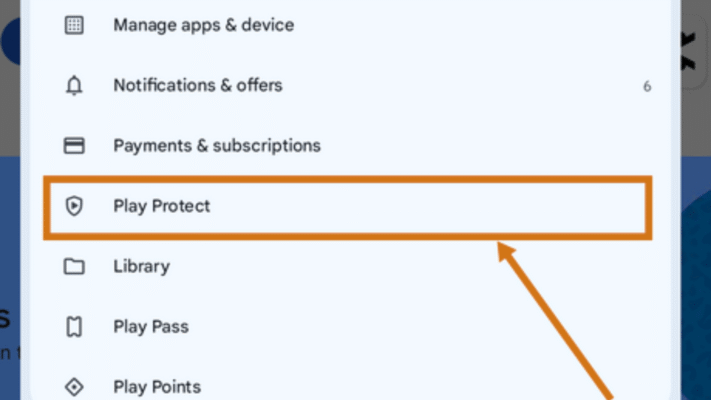
Google Play Protect is Android’s built-in malware detection system that continuously scans apps installed on your device. Many users ignore this feature, not realizing that Play Protect actively checks apps for suspicious behavior, even after installation. It works silently in the background and compares apps against Google’s massive malware database, making it one of the most reliable Android security layers.
When Play Protect is disabled, your phone becomes vulnerable to fake apps, trojans, and spyware that may look harmless but secretly steal data. Enabling this feature ensures real-time protection against malicious apps, especially those installed from third-party sources. Even apps from the Play Store are not always safe, which is why continuous scanning is critical.
How to enable Play Protect:
-
Open Google Play Store
-
Tap on your profile icon
-
Go to Play Protect
-
Turn on Scan apps with Play Protect
Turn On App Permission Manager (Stop Permission Abuse)
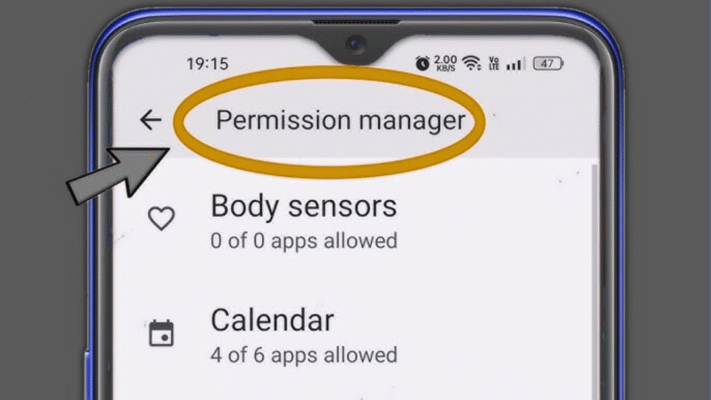
App permissions are one of the biggest security loopholes in Android. Many apps request unnecessary permissions that can be misused to spy on users. The App Permission Manager allows you to control exactly which app can access sensitive features like camera, microphone, location, contacts, and files.
Without proper permission control, malicious apps can silently listen to conversations, track real-time location, or access private photos. Android’s permission manager allows you to revoke access, allow only while using the app, or completely deny permissions. This is one of the most powerful Android privacy and security settings that users often ignore.
Best practices for permissions:
-
Allow permissions only while app is in use
-
Remove access from unused apps
-
Regularly review microphone & camera permissions
Enable Find My Device (Anti-Theft Protection)
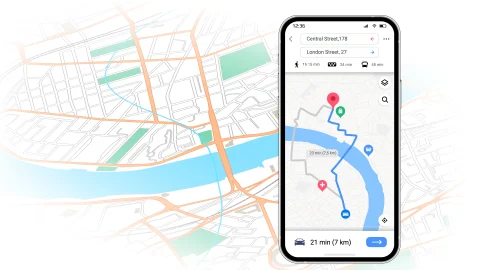
Losing a phone is not just about hardware loss; it’s about data exposure. Find My Device allows you to locate, lock, or erase your phone remotely if it gets lost or stolen. Many users enable screen lock but forget to turn on this critical security feature, making recovery impossible.
Once enabled, you can track your phone’s last known location, ring it even if it’s on silent, or wipe all data remotely. This feature is especially important for users who store banking apps, emails, or work data on their phones.
How to enable Find My Device:
-
Go to Settings
-
Security & Privacy
-
Find My Device → Turn ON
Activate Automatic Security Updates
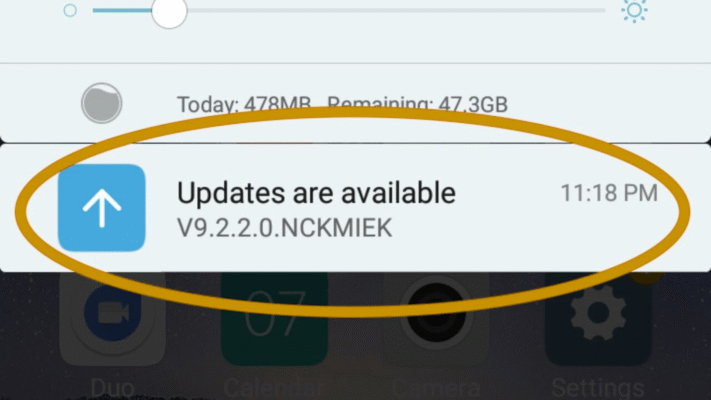
Android security updates patch vulnerabilities that hackers actively exploit. If automatic updates are disabled, your phone remains exposed to known security flaws. Many cyber attacks happen not because of new threats, but because users are running outdated software.
Security updates include fixes for system bugs, malware loopholes, and privacy issues. Enabling automatic updates ensures your device receives protection as soon as Google releases it.
Why updates matter (Table):
| Threat Type | Without Updates | With Updates |
|---|---|---|
| Malware | High Risk | Minimal |
| Spyware | Easily Installed | Blocked |
| Data Theft | Common | Rare |
Disable “Install Unknown Apps” (Major Malware Entry Point)
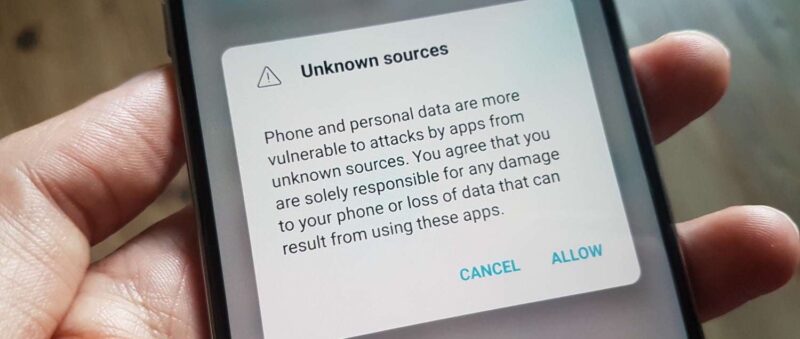
One of the most dangerous Android settings is allowing apps from unknown sources. Hackers often trick users into installing fake APK files that contain spyware or banking trojans. Once installed, these apps can bypass many security layers.
Disabling unknown app installs ensures that apps can only be installed from trusted sources like the Google Play Store. This simple step blocks a huge percentage of malware attacks.
Steps:
-
Settings → Security
-
Install Unknown Apps
-
Disable for all apps
Summary Table: Essential Android Security Settings
| Security Setting | Purpose | Risk if Disabled |
|---|---|---|
| Play Protect | Malware scanning | High malware risk |
| Permission Manager | Privacy control | Data leakage |
| Find My Device | Theft protection | Data loss |
| Security Updates | Patch vulnerabilities | Exploitable bugs |
| Unknown Apps | Malware prevention | Trojan attacks |
Final Thoughts: Secure Your Android Before It’s Too Late
Most Android security breaches happen not because Android is unsafe, but because users fail to configure their security settings properly. Enabling these Android security settings takes less than 15 minutes but can save you from identity theft, financial loss, and privacy invasion. In today’s digital world, smartphone security is not optional — it’s a responsibility.
If you take one action today, let it be this: review and enable your Android security settings now. Prevention is always easier than recovery.
FAQs – RICH SNIPPET READY
What are the most important Android security settings?
The most important Android security settings include Google Play Protect, app permission management, Find My Device, automatic security updates, and disabling unknown app installations. These settings protect your phone from malware, hacking, and data theft.
Are Android security settings enough to protect my phone?
Yes, when properly enabled, Android security settings provide strong protection against most threats. However, users should also avoid installing untrusted apps and keep their device updated for maximum security.
How often should I check my Android security settings?
You should review your Android security settings at least once every month or after installing new apps to ensure no unnecessary permissions or risky options are enabled.
Can hackers bypass Android security settings?
Hackers usually target phones with weak or disabled security settings. If your Android security settings are properly configured and updated, bypassing them becomes extremely difficult.
Do Android security settings slow down the phone?
No, Android security settings are optimized by Google and do not slow down your phone. In fact, they help maintain system stability and protect performance by blocking harmful apps.
Read More: The 10 Most Dangerous Public Wi-Fi Threats for Android Users
